

What's new?
Say "Sentai stop!"
You can now stop Sentai whilst it speaks by just saying "Sentai Stop!" This addresses some feedback we've got from users that they could not stop an unwanted or badly-timed conversation easily.
Talk over Sentai
You can also talk over Sentai when it's talking, for example to steer the conversation into a different direction. The microphone will stay open whilst Sentai is talking.
Fix for noisy environments
Some users reported that sometimes Sentai responds to television and radio noise. We've added an extra layer of AI to identify external noise such as television and radio programs, and stop Sentai responding to this noise. We will be refining this mechanism over time based on your feedback.
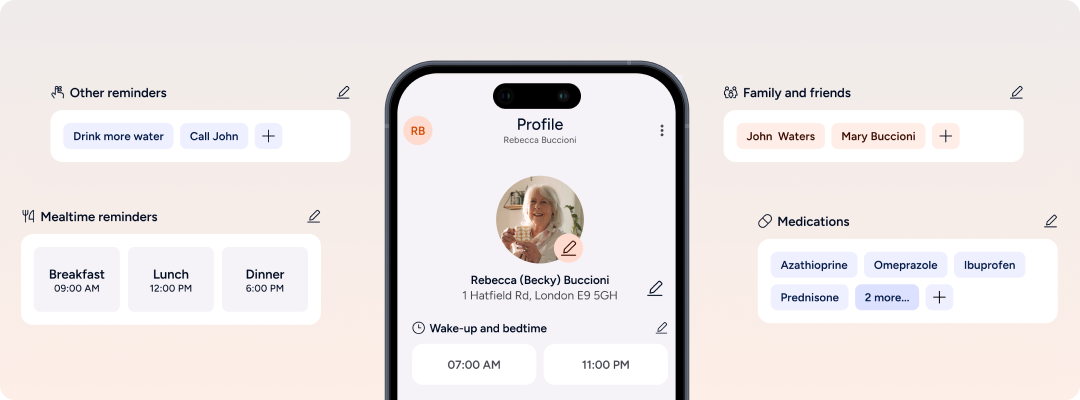
Mobile app refresh
To make easier to see what is set up for a user, we've merged Profile and Settings into a single page showing all information about a user. We've also added the ability to add a photo, either from the photo library or by taking one with the phone's camera.
Sentai Pro Dashboard for care providers
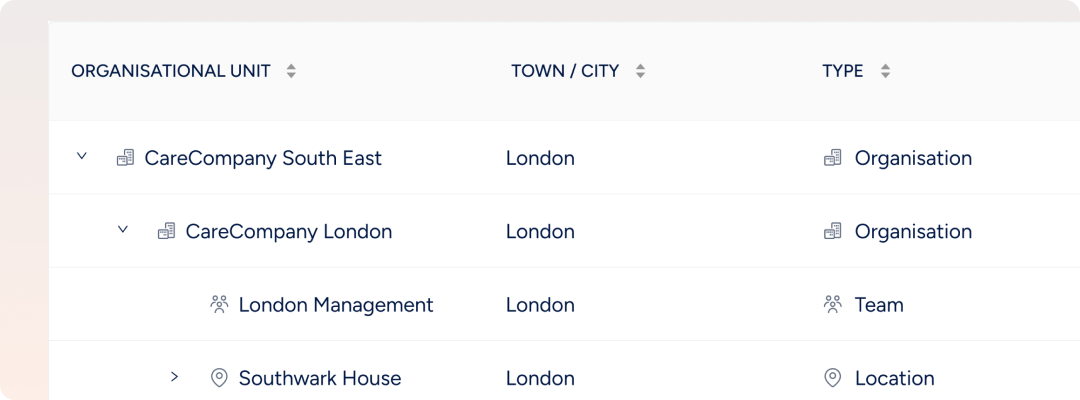
Introducing locations and groups
We've added the ability to create an organisational structure of organisations, locations and teams, and access groups. This enables care managers create different locations, enable or disable features at these locations, and allocate carers to users with ease. It supersedes the 1 to 1 carer / user relationships, and makes it easy to add employees to groups so they have automatic access to all their service users.
Organisations
Organisations will help you manage different business units more easily. An organisation can be a top level business, such as "Care Company" or a subsidiary such as "Care Company South East". You can enable or disable features for an organisation.
Locations
This feature enables building a hierarchy of locations, for example region, city, building, ward, room, and manage the features that can be used at these locations. There is no limit to the number of levels in the location hierarchy. Users can still have a home address within a location, as required for home care, or a location as required for residential care or housing, for example: "Willow house / Ward 1 / Flat 3". Each location level can have its own address.
Teams
Teams enable grouping employees that work in an organisation or at a location, so they can easily be given access to users.
For example, "Willow house / Ward 1" could have a "Ward 1 Care Team".
Access groups
These connect a team or individual employees to a location, to give access to all service users at that location. You can define what kind of information the team can see and edit. Each team can be part of multiple access groups. For example: "Ward 1 Care Team" has access to “Willow House / Ward 1”, where it can view and edit all user information. This would be one access group. You could also give "Ward 1 Care Team" access to all of “Willow House”, but on a view only basis.
By adding a new employee to "Ward 1 Care Team" you would give the employee automatic access to all users that are members of the access groups that "Ward 1 Care Team" is part of.