Often users don’t want communicate at set times, and want more flexibility and control when and how to interact. And not everything requires a set reminder at a set time, sometimes it’s enough for Sentai to be aware of a topic and weave it into a conversation when appropriate. So, in addition to the existing scheduling options that offer scheduled events at set times and recurrences, we've introduced two new options:
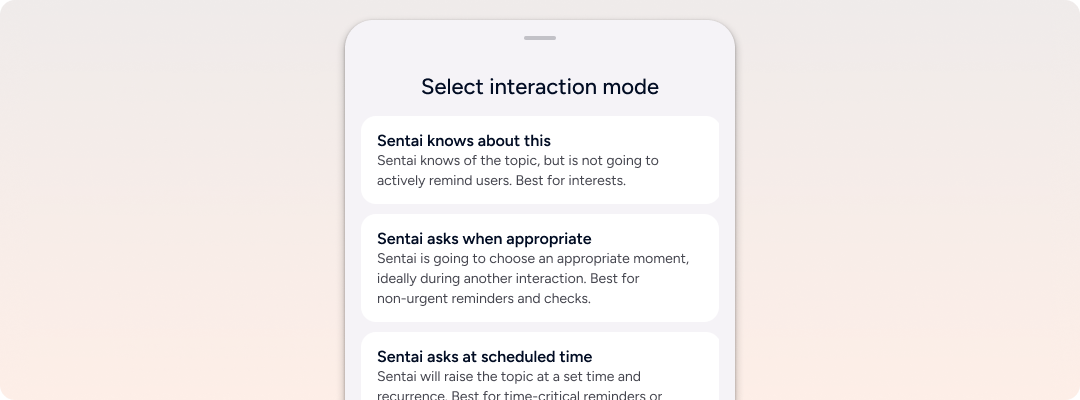
“Sentai knows about this”
Sentai knows of the topic but is not going to actively remind users at set times or intervals. This option has a start and (optional) end date, but no fixed schedule. When asked, Sentai will know about the topic, and might use that knowledge to enrich a conversation, for example: Sentai knows that I take a certain medication. Or Sentai knows that I like watching cricket. This is the ideal option if you just want to let Sentai know more about a user’s interests, or other facts that Sentai should be aware of.
“Sentai asks when appropriate”
Sentai is going to choose an appropriate moment, ideally during another interaction. This option is best for non-urgent reminders and check-ins. Available recurrence options are daily, weekly, monthly, and yearly, and available timeframes are morning (day start to 12:00), afternoon (12:00-18:00), evening (18:00-day end), or any time in the day. This option also has a start and (optional) end date. Sentai will choose an appropriate timing based on presence and other interactions scheduled, and will try to group the interaction with other conversations. We recommend this option for most interactions that are not time-critical, such as general reminders and conversations. Over time, we will make this option smarter by analysing when users are normally at their “chattiest”. Find out more
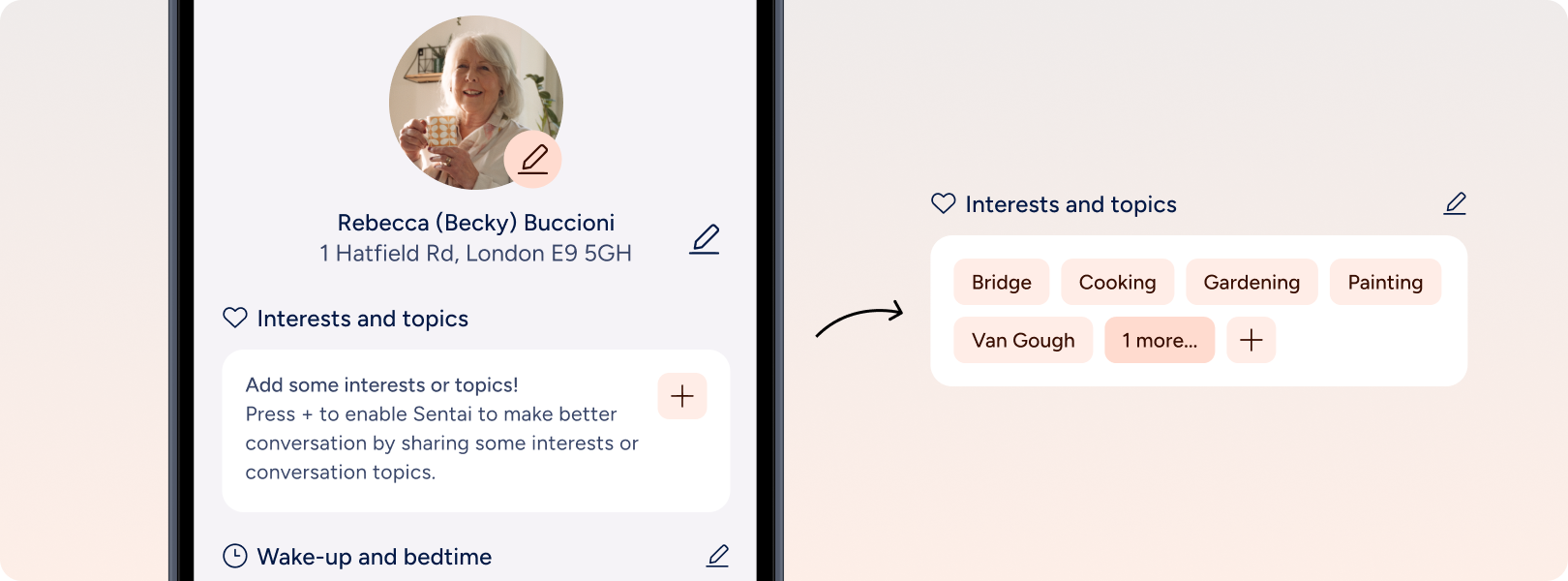
Conversations are now called “interests and topics”. This responds to the fact that Sentai can now know about a topic of interest and weave it into the conversation when appropriate, without having scheduled a conversation at a specific time. In one of the next releases, Sentai will pick up topics of interest by itself to better tailor conversations around a user’s preferences over time.
Sometimes it’s hard to follow the flow of notifications on your phone. This is why we redesigned the mobile app to accommodate a new panel as a single place to see all notifications, with a workflow that enables you to easily accept ownership of a task. Find out more
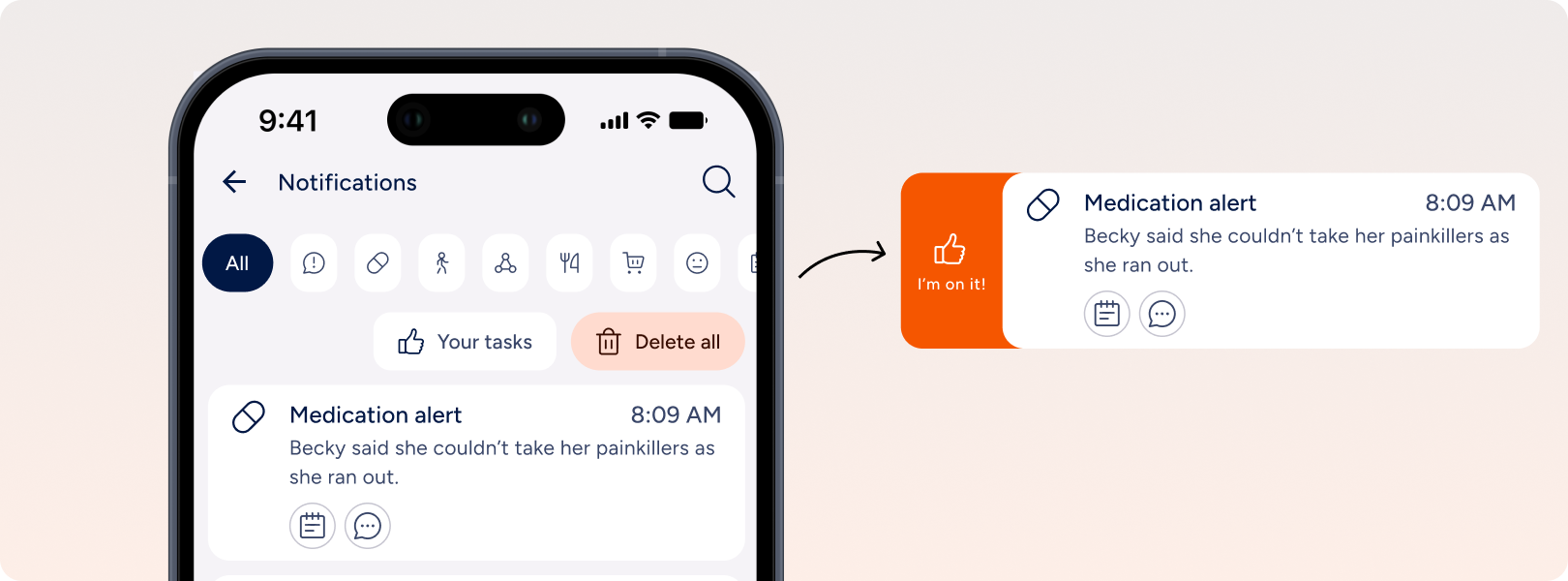
You can now accept a notification by sliding it to the right, and tapping “I’m on it”. This way Sentai, and any of your fellow carers will know that you own the task. Once it’s resolved, you can mark the notification as “resolved”. Sliding to the left and tapping “delete” will let you delete the item from the list. Find out more
You can also add a note to a notification, for example when you change the status and would like to add a comment. Press the notes icon and add your note. Don’t forget, if available, you can speed things up by using the mic button on your phone’s keyboard to convert your speech to text.
Just like the workflow for notifications, you can now accept a shopping item by sliding it to the right, and tapping “I’m on it!”. Once you got the item, you can mark the shopping as “Done” to let everyone know you took care of it. To avoid making things too noisy, Sentai won’t sent a message to users, but users can query Sentai to find out who’s taking care of their shopping. Lastly, just like before, sliding to the left and tapping “delete” will let you delete the item from the list.
We have added a new notifications screen into the web dashboard. This enables you to view and manage all notifications for the service users that you have access to. The dashboard shows notifications of the last 24 hours, or previous dates if you select another date.
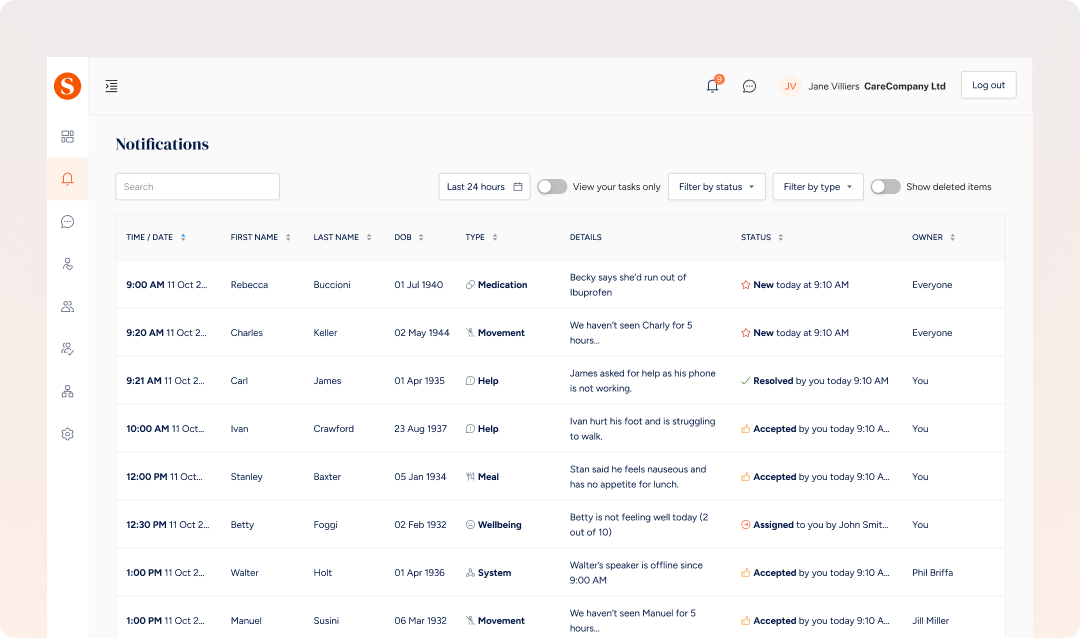
You can filter by type and status and show the tasks that are owned by you. These are tasks that are assigned to you or have been accepted by you.
To change the status of a notification, click on it, and select the status in the overlay. Available statuses are “Assigned”, “Accepted”, “Resolved”, and “Deleted”.
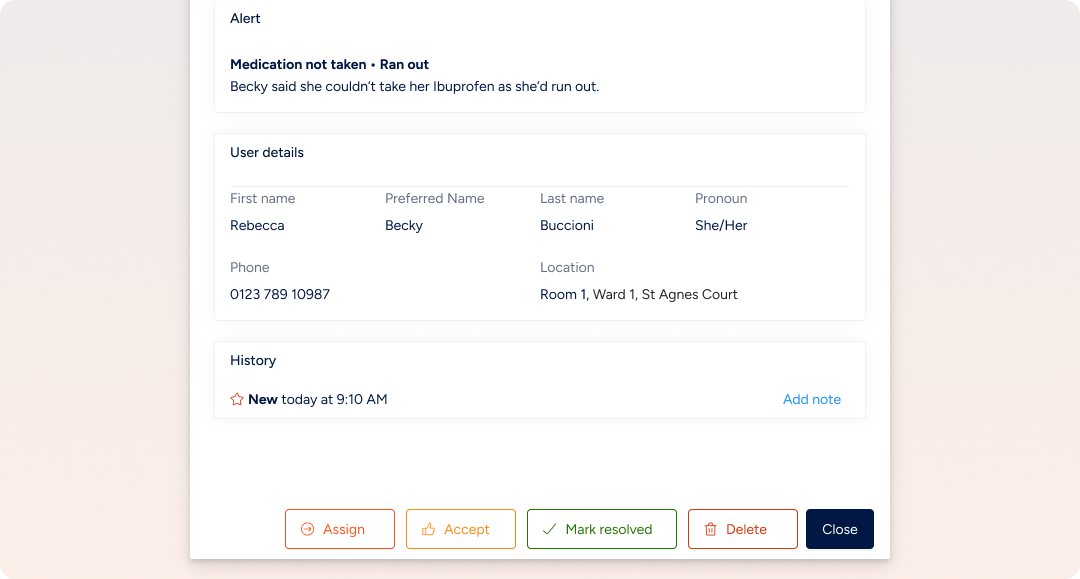
Admins of an access group can assign notifications in the dashboard by searching for a user or a team. You can’t assign notifications in the app. Once assigned, the notification will show as “assigned” to the person or members of the selected team. The assignees will see these tasks as assigned to them in the app and in the dashboard. Find out more
You can now define the scope of notifications received by an access group. This enables you to create different groups for different tasks, for example, you could create an access group for carers that manage help requests only, but do not want to receive other updates such as shopping or wellbeing notifications. Find out more