Sentai can send notifications to configured carers, family and friends, if it detects a problem or has a care update. You can configure who receives which types of notifications by configuring family and friends, or an access group for carers.
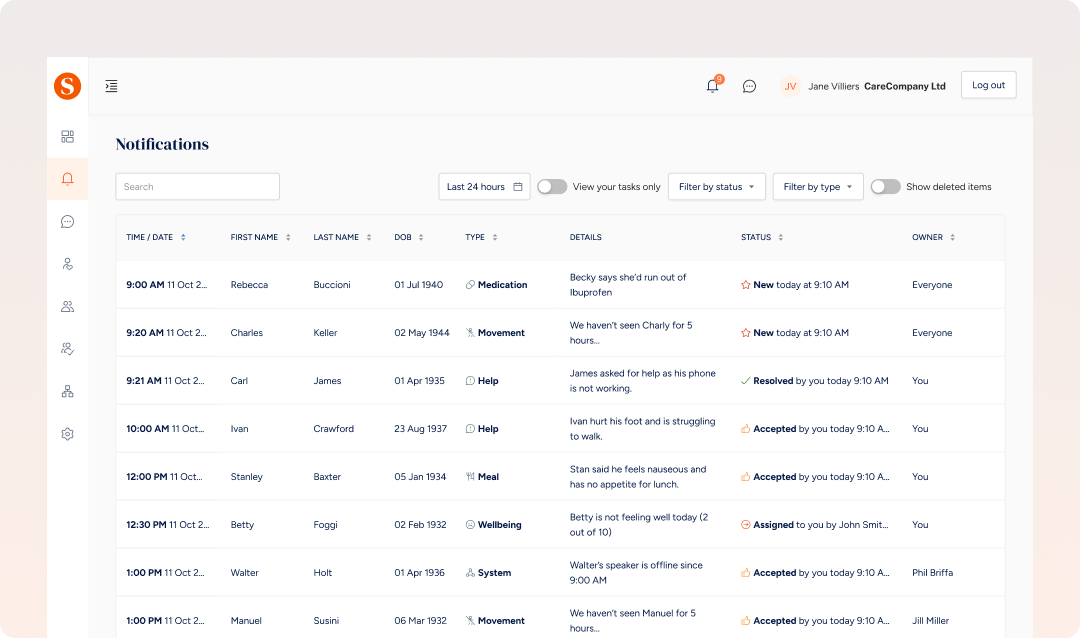
The following notifications are being sent, dependent on what’s configured for a user:
Medication, if not taken and the reason why
Quick help requests and their nature
Wellbeing scores
No movement detected and for how long
Speaker muted or disconnected
New note added
Meal not taken and reason why
Shopping added
Any results of other interactions that don’t require anyone to act upon are stored in the Activity Log.
Sentai has a workflow for actioning notifications.
Assigned
Admins of an access group can assign notifications in the dashboard by searching for a user or a team. You can’t assign notifications in the app. Once assigned, the notification will show as assigned to the person or team members. The assignees will see these tasks as assigned to them in the app and in the dashboard, and can filter to see their tasks.
Accepted
Carers can set the state of the notification to “accepted” in the dashboard by pressing Accept. Carers, and also family, can slide right and press “I’m on it!” in the Sentai app. This will show everyone that this task is now taken by the carer or family member.
Resolved
Carers can set the state of the notification to “resolved” in the dashboard by pressing Resolved. Carers, and also family, can slide right and press “Resolved” in the Sentai app. this will mark the issue as resolved, and show everyone else that no further action is required.
Deleted
Carers can also delete a notification if it requires no action. Carers, and also family, can slide left and press “Delete” in the Sentai app. This will remove the notification from anyone’s list.
Open notifications in the Sentai dashboard. The dashboard shows notifications of the last 24 hours, or previous dates if you select a date on the date selector.
You can filter by type and status, and show your tasks. These are tasks that are assigned to you or accepted by you.
Open the notification panel by pressing the bell icon. The app only shows notifications of the last 24 hours.
You can filter by type, and by your tasks. These are tasks that are assigned to you or accepted by you.
Open notifications in the Sentai dashboard.
Click on the notification in notifications.
Change the status in the overlay.
Open the notification panel by pressing the bell icon
Swipe the notification right to show the status button.
Press the button to accept, or resolve the notification
Open notifications in the Sentai dashboard.
Click on the notification in notifications.
Press delete in the overlay.
Deleted notifications can be shown in the dashboard by using the show deleted items switch.
Open the notification panel by pressing the bell icon
Swipe the notification left to show the delete button.
Press the delete button to delete the notification
Once deleted, notifications will no longer be shown in the app.
You can add notes to notification, for example when you change the status of a notification and want to add a comment.
Press the notes button on the notification
Tap on Add note to enter your note. You can type it, or use the microphone feature on your phone for dictation.
Press the done button on your phones keyboard. The note is aligned with the current status of the notification.
Open notifications in the Sentai dashboard.
Click on the notification in notifications.
Press Add note next to the status in the History panel of the overlay.
Enter your note.
Press Save.